Your first newsletter
From start to finish, once through. Allow half an hour.
Prerequisite: you have finished Getting started — the five pages are in place, the sender is set, there is a group, and you yourself are a confirmed subscriber in it.
That last point matters. Enter yourself as a subscriber before you begin: only then does the test send show you what the mail looks like for a real recipient.
The path in eight clicks
The steps in detail below. First the overview — where you click and what is on screen afterwards:
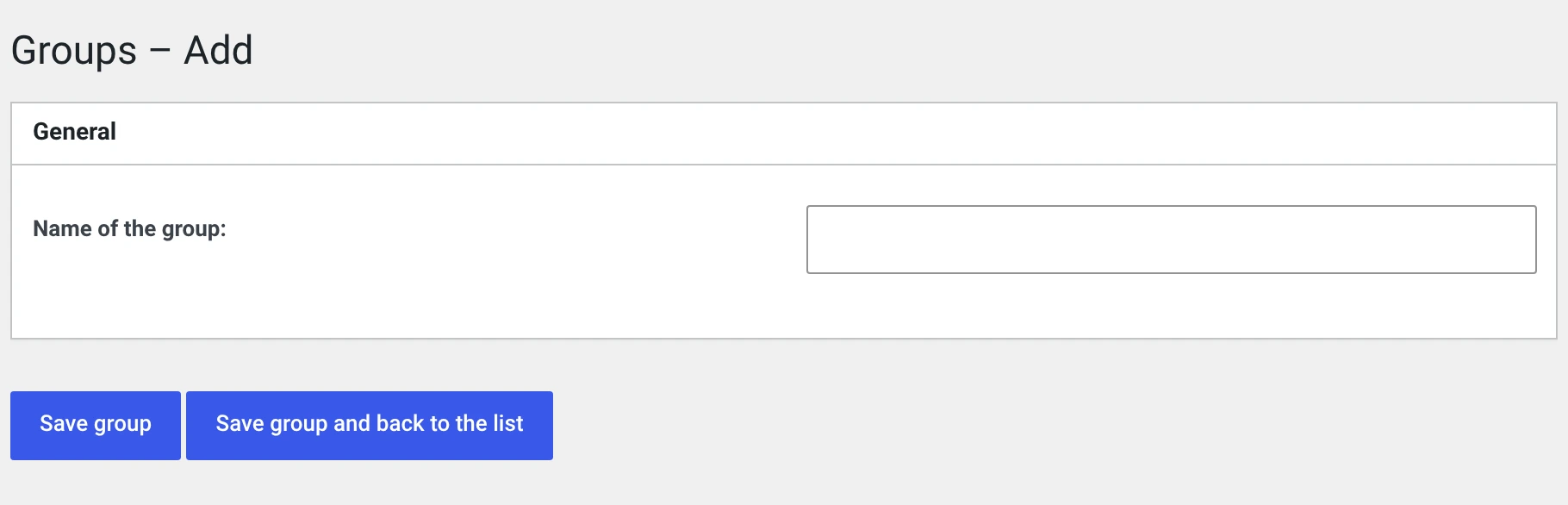
1 Create a test group, then Save group The first issue goes to you alone. If anything goes wrong, nobody sees it.
2 Write the subject line It is the name of the newsletter and later sits in the recipient's inbox.

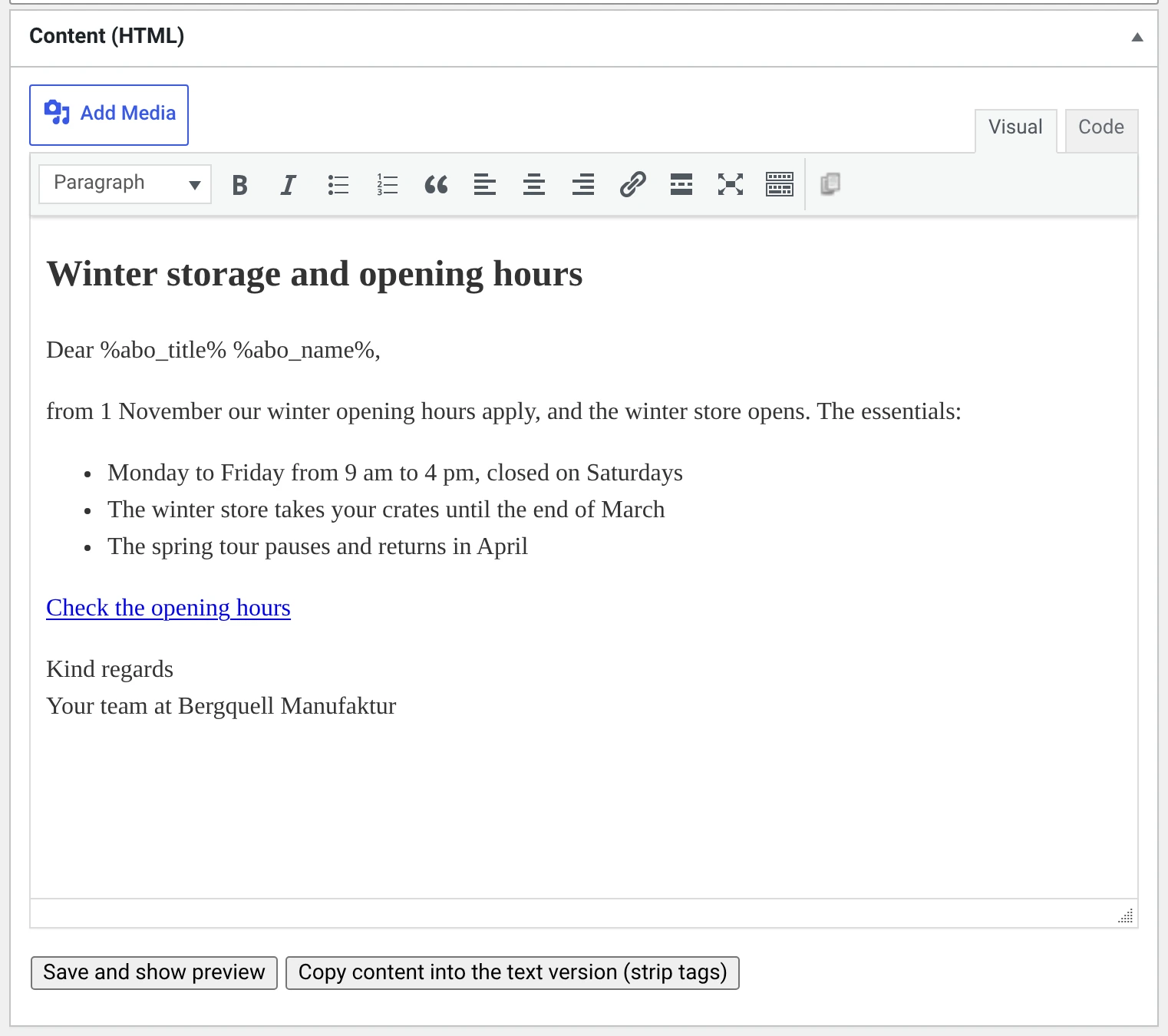
3 Write the content, on the Visual tab Heading, salutation, content. Placeholders such as %abo_name% are filled in when sending.
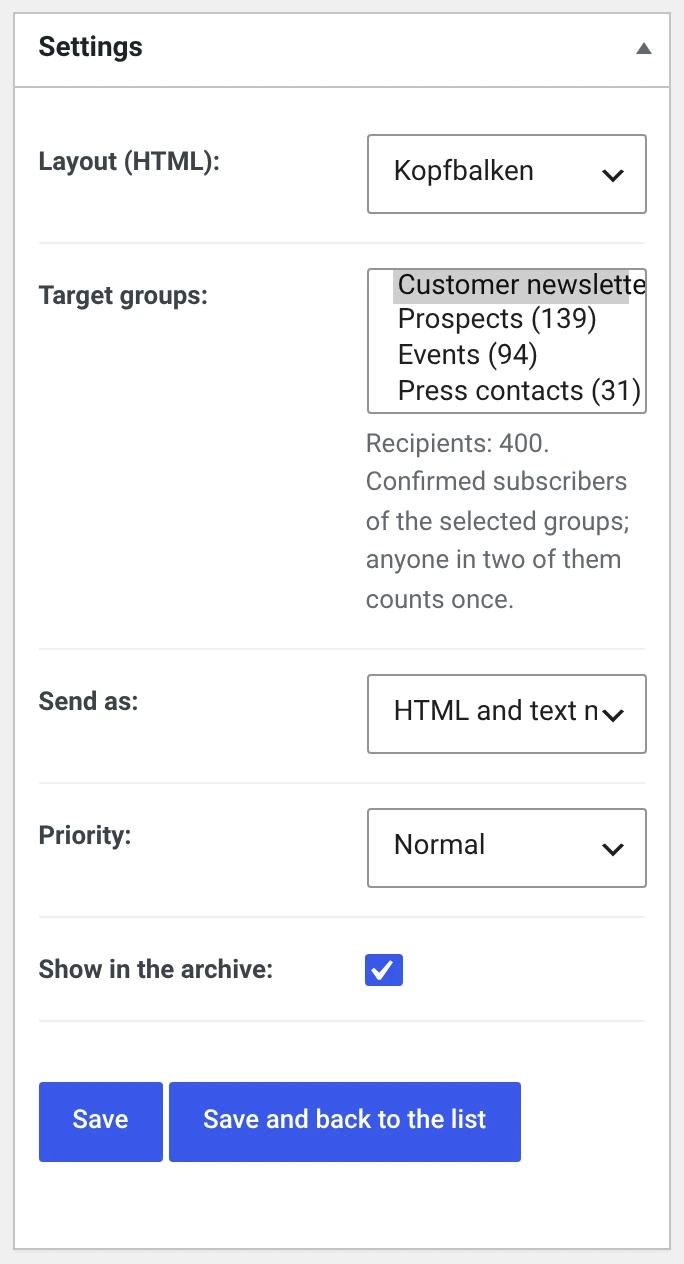
4 Choose the target group, then Save The number of recipients sits under the selection. A test send needs a saved newsletter.
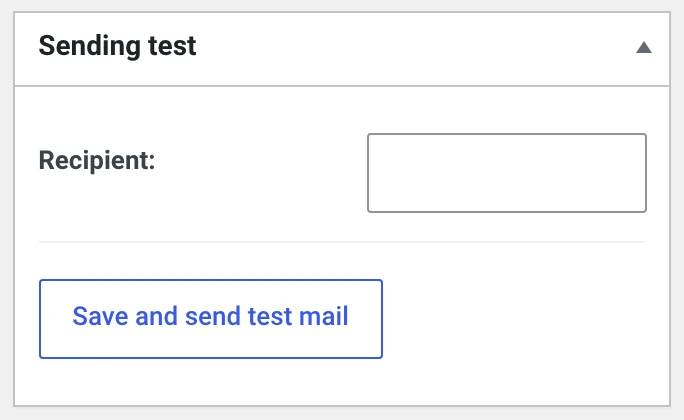
5 Enter your own address, Save and send test mail The test mail is not a preview but the real thing: same template, same route.
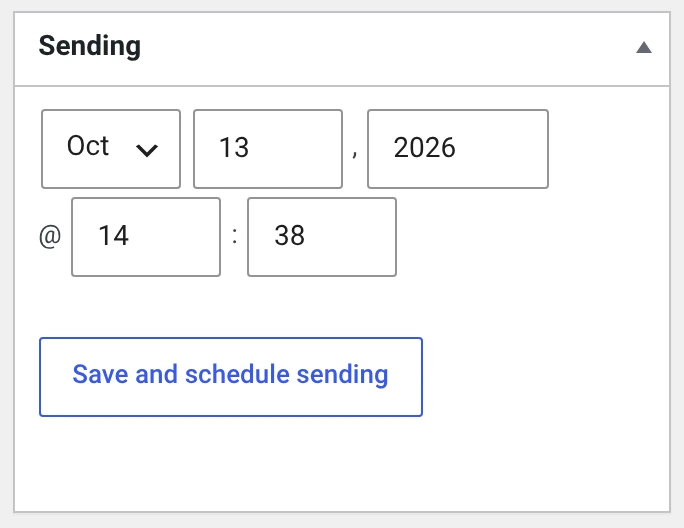
6 Set the date, Save and schedule sending Until the date is reached you can still cancel the sending.
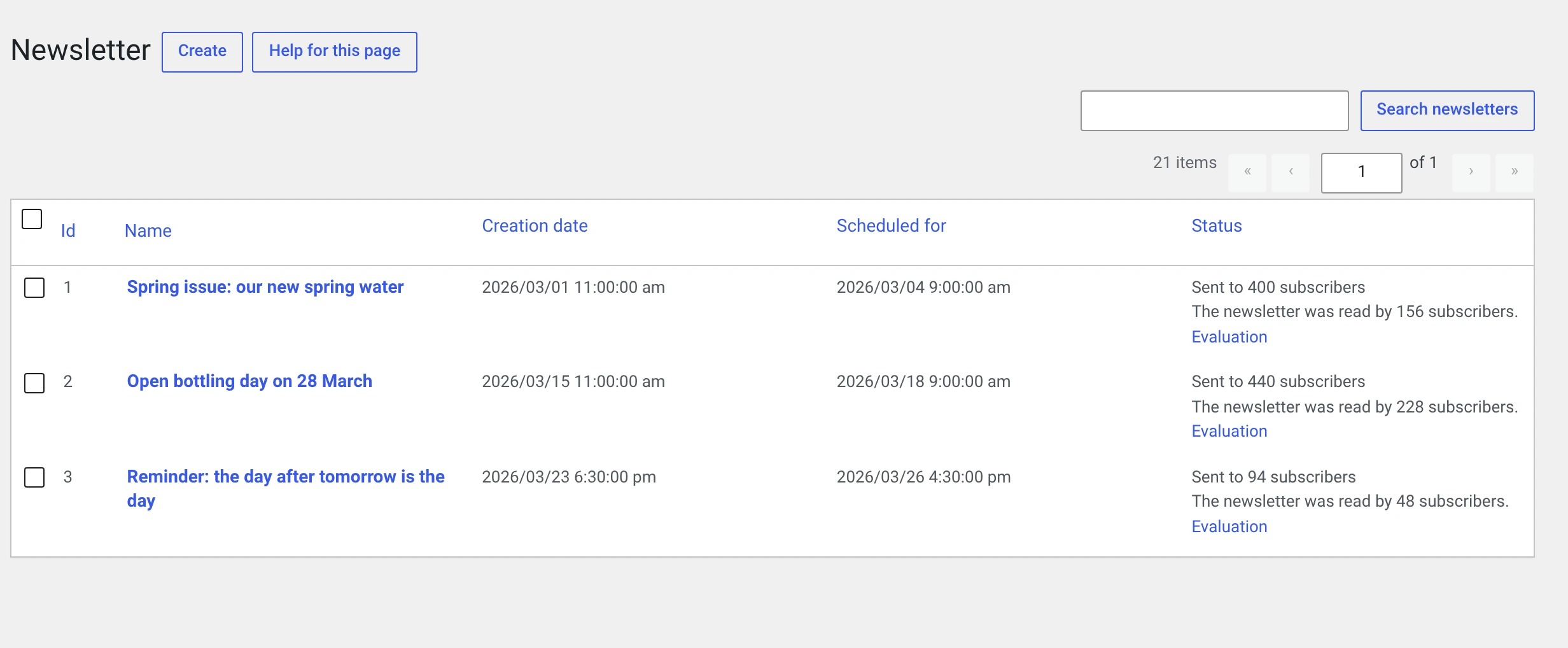
7 Watch it in the list The count grows with every cron run, not in one go.
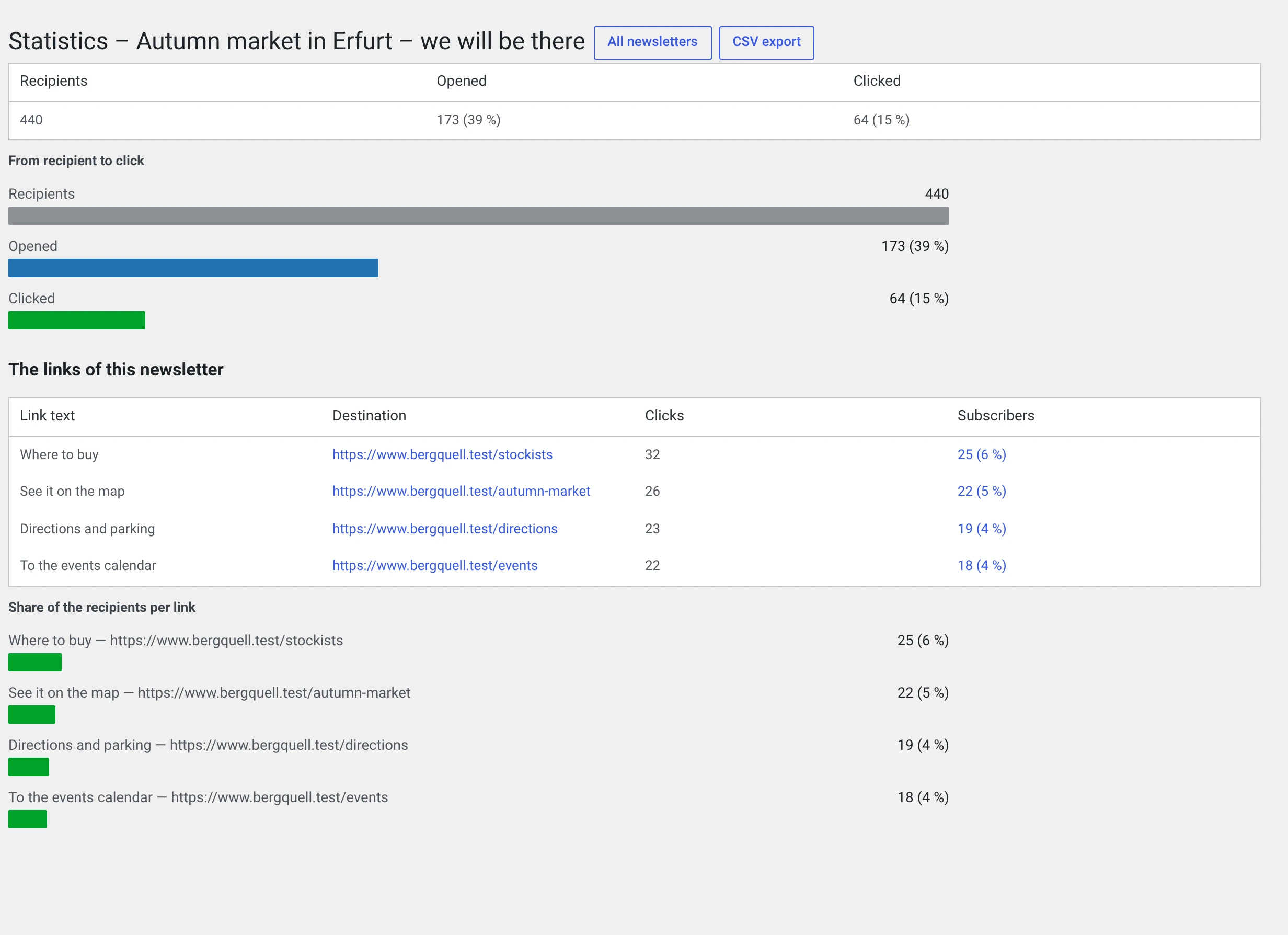
8 Look at the evaluation the next day Opens and clicks take time — half of them arrive on the first day.
1. Create a test group
Newsletter → Groups → Add, name it Test.
Then open yourself under Subscribers and tick that group as well.
Why a test group
Your first issue then goes to a group containing only you. If anything goes wrong, nobody sees it.
Keep the group. It stays useful later when you try out a new layout.
2. Create the newsletter
Newsletter → Newsletter → Create
Name: write the subject line here, not „NL 01". The subject is
%nl_name% out of the box, and with some templates the name also appears at
the top of the mail.
September issue: apple juice from the region
Target groups: Test.
Layout: leave the default. You will switch later, once you see how it looks.
3. Write the content
In the Content (HTML) box. Write as though you were writing a post — header, footer, logo and unsubscribe link come from the template and do not belong in the editor.
A structure that works for a first issue:
Dear %abo_title% %abo_name%,

one sentence saying what this is about.

Two or three paragraphs.

[A link to the page it is about]

Kind regards
Your team at …
Three things that are different in a mail than on a website:
- Every link in full, with
https://and domain. An/offerleads nowhere in a mailbox. - Images with width and height. Outlook ignores a
max-width. - No columns. If you need two of them, use the Zweispaltig template.
A salutation with a name only if you have names
%abo_vorname% becomes nothing for somebody who only left their address —
and then it says „Dear ,".
Check in the subscriber list how many have a name at all. When in doubt write „Hello," without a name, or build yourself a salutation with a fallback using the Placeholder rule module.
4. The text version
Below the editor, click Copy content into the text version (striptags) and read through the result in the box beneath. Put in paragraphs where they are missing, and write out the addresses of the links.
Do not leave the text version empty. A mail without one is a signal to spam filters.
5. Save and look at it
Save (top right), then Save and show preview below the editor. The finished mail opens — content in the template, placeholders resolved.
Now is the moment to switch the layout until it fits. Newsletter → Templates shows all ten side by side, with your logo and your colour.
6. Test send
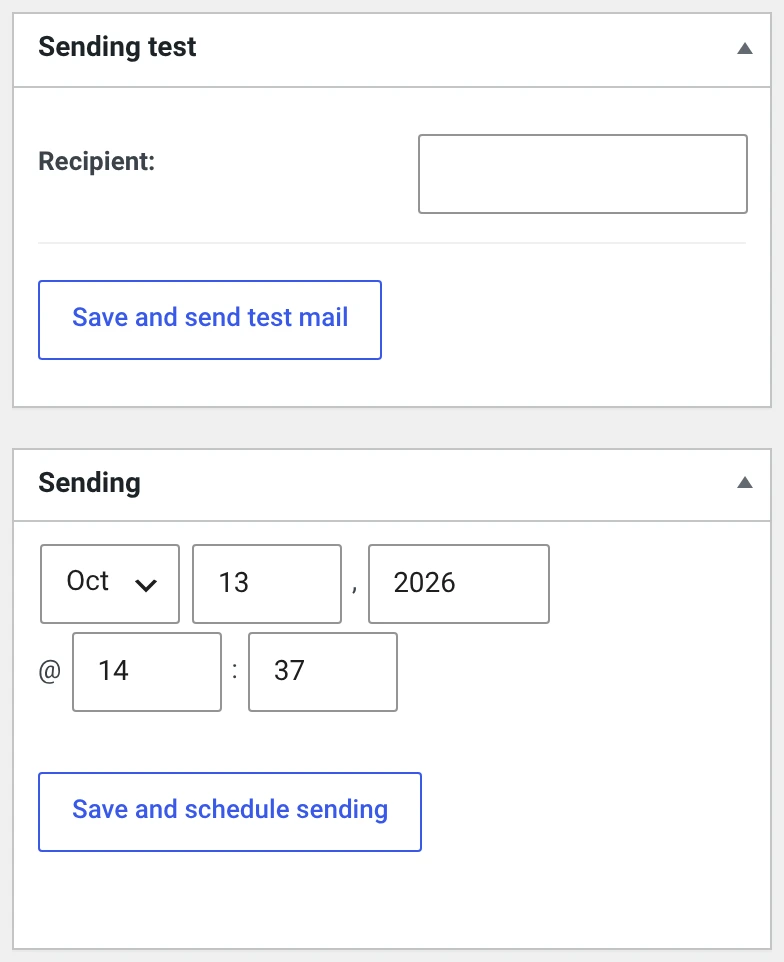
On the right, in the Test delivery box, enter your own address, then click Save and send test mail.
Go to your mailbox and check:
| Did the mail arrive at all? | If not: The newsletter does not arrive |
| Is it in spam? | Then check the sender address, SPF and DKIM — not the text |
| Is the salutation right? | It should show your name, because you are entered as a subscriber |
| Does the unsubscribe link work? | Actually click it. It is mandatory. Then sign yourself up again |
| Are your legal details in the footer? | Every template has an italic placeholder sentence there that wants replacing |
| Does the mail look right on a phone? | Half of your recipients read it there |
| Do the links go where they should? | Click every one |
Test in more than one program
Set up a free mailbox with two of the big providers for the newsletter and send the test mail there too. Outlook and Gmail display the same mail differently, and that is the only way to see it.
7. The legal details into the footer
If the footer of the test mail says
Your legal details belong here: postal address, authorised representative, contact.
then it is there on purpose — and has to go before the issue reaches real recipients.
To begin with it is enough to write the details at the bottom of the editor. The clean way is a layout of your own.
8. Now to the real group
Back in the form: switch Target groups to your real group.
Below the selection is the number of recipients. Look at it before you carry on. If it says zero, the group has no confirmed subscribers.
9. Set a date and schedule
On the right, in the Delivery box, set the day and time, then Save and schedule sending.
Sending scheduled for 440 recipients.
From that moment it is settled who gets the issue, and the newsletter is locked.
When to send
There is no time of day that is always right. What holds reliably:
- Not Friday afternoon. The mail sits under thirty others until Monday.
- Not in the middle of the night. It is then right at the bottom in the morning.
- Always at the same time. Regularity is worth more than the perfect hour.
And: try it out. After the third issue the statistics tell you more than any guide.
10. Watch
The newsletter list shows the progress:
200 / 440 subscribers have received the newsletter
The cron works through the queue in portions. If the progress stalls, the cron is not running — Sending settings says when it last ran.
If you notice a mistake now: Cancel sending / Reschedule in the form. What is already out stays out — the rest will not go.
11. The next day: evaluate
If the Statistics module is running, Newsletter → Statistics shows how many opened and clicked.
Read Reading the statistics before drawing conclusions — the numbers are an estimate, not a measurement.
And look into the mailbox the bounces go to. The first issue to a list you took over produces the most of them.
The next issue
Copy in the newsletter list. Content and target groups are carried over, and the new newsletter is a draft.
That is the way: an issue that worked is the template for the next one.