Getting started
This page takes you from a fresh installation to your first sent newsletter. Allow ten minutes.
If you would first like to know whether your server plays along, read the System requirements. How the plugin gets onto the server is described under Installation.
1. Create the five pages
The plugin needs five pages on your site: one carrying the subscription form and four that visitors land on after clicking a link in an e-mail.
The plugin does not create them by itself. It only tells you which ones are missing, with a red box at the top of the backend. The reason: a page a plugin creates unasked shows up in the menu, in the search index and in the sitemap, and nobody knows where it came from.
Create these five under Pages → Add New. The names are suggestions:
| Page | What goes on it |
|---|---|
| Newsletter | One sentence of invitation. The plugin inserts the form itself |
| Newsletter: subscription confirmed | „Thank you, your subscription is confirmed." |
| Newsletter: subscription cancelled | „Your subscription was cancelled, nothing has been stored." |
| Newsletter: unsubscribed | „You have been unsubscribed." |
| Newsletter archive | One sentence; the plugin inserts the list itself |
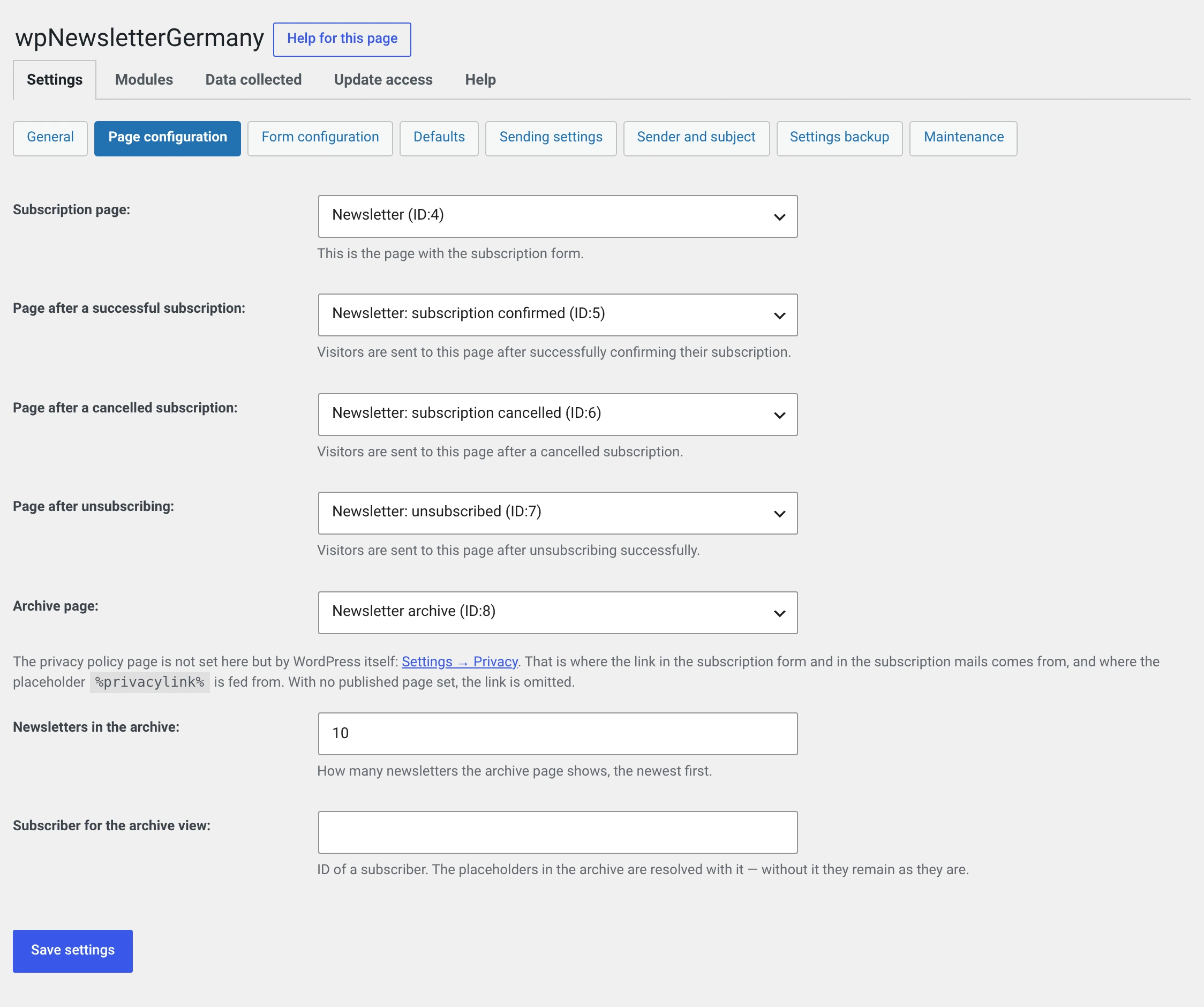
Then enter them under Newsletter → Configuration → Settings → Page configuration. The red box disappears as soon as all five are set.
2. Enter a sender
Newsletter → Configuration → Settings → Sender and subject
Under Global defaults, the sender field needs an address on your own domain:
Bergquell Manufaktur <newsletter@bergquell.test>
This is the single most important setting. A sender address on someone else's domain — a free mail address, say — cannot be covered by SPF and DMARC, and the mail ends up in spam or is rejected outright.
3. Check the mail route
Newsletter → Configuration → Settings → Sending settings
Out of the box this is WP mailer. That is the route your website takes for all its mail anyway; if an SMTP plugin is running, the newsletter goes out over its connection too. For most installations that is the right choice.
Two values are worth a look:
- Newsletters sent per run. 200 out of the box. The cron runs hourly, so that is up to 4,800 mails a day. If your server aborts the run — you notice because a send makes no progress for hours — set the value lower, not higher. 50 is a good second attempt.
- Cron system. WordPress internal is enough as long as someone visits your site regularly — WP-Cron depends on page views. On a site without visitors, set up a real cron job; the address for it is on the same page.
4. Create a group
Newsletter → Groups → Add
A newsletter always goes to groups, never to „everyone". One group is enough to begin with; call it Customer newsletter, for example.
Then enter it under Configuration → Settings → Form configuration as Group assignment after subscribing. Otherwise subscriptions end up in no group at all and never receive a newsletter.
With exactly one group it happens by itself
If there is only a single group in the installation, the plugin puts subscriptions there even without the setting. As soon as there are two, you have to decide.
5. Make the form visible
The subscription page from step 1 already carries the form. For every other place there are four ways — shortcode, block, widget and „under every post". They are described under Placing the subscription form.
The quickest one: write the shortcode into any page.
[wpng_form]
6. Sign yourself up and walk the whole path once
Open your subscription page, enter your own address and click the link in the confirmation mail. In one go you have checked that mail goes out, that the confirmation page is in place and that the subscriber lands in the right group.
If no mail arrives, work through The newsletter does not arrive.
7. Write the first newsletter
Newsletter → Newsletter → Create. What happens next is described in Your first newsletter.
What you should set up afterwards
None of this is needed to get going — but every item saves work later.
| Why | |
|---|---|
| Switch on Spam protection | An open subscription form will be found. The module needs no third-party service and stores no IP address |
| Switch on the Sending log | Without it you cannot say later who received a newsletter |
| Pick a template | The default is deliberately plain. Ten are available, with your logo and your colour |
| Put your legal details in the footer | Every template carries an italic placeholder sentence there. It is visible on purpose, so that it gets replaced |
| Extend your privacy policy | What needs adding is listed by the plugin under Newsletter → Configuration → Data collected |
| Back up your settings | One file, and the setup is not lost |