Placing the subscription form
There are four ways to get the subscribe/unsubscribe form onto your website. They do not exclude one another.
| Way | What for |
|---|---|
| The subscription page | The one page you link to from everywhere |
The shortcode [wpng_form] |
Everywhere else, with the most precise control |
| The „Newsletter form" block | The same thing, clicked together in the editor |
| Automatically under every post | Set once, applies to all posts |
On top of that there is the widget „wpNewsletterGermany Registration" for themes with a sidebar.
The subscription page
The page entered under Page configuration as Registration page. The plugin replaces its content with the form.
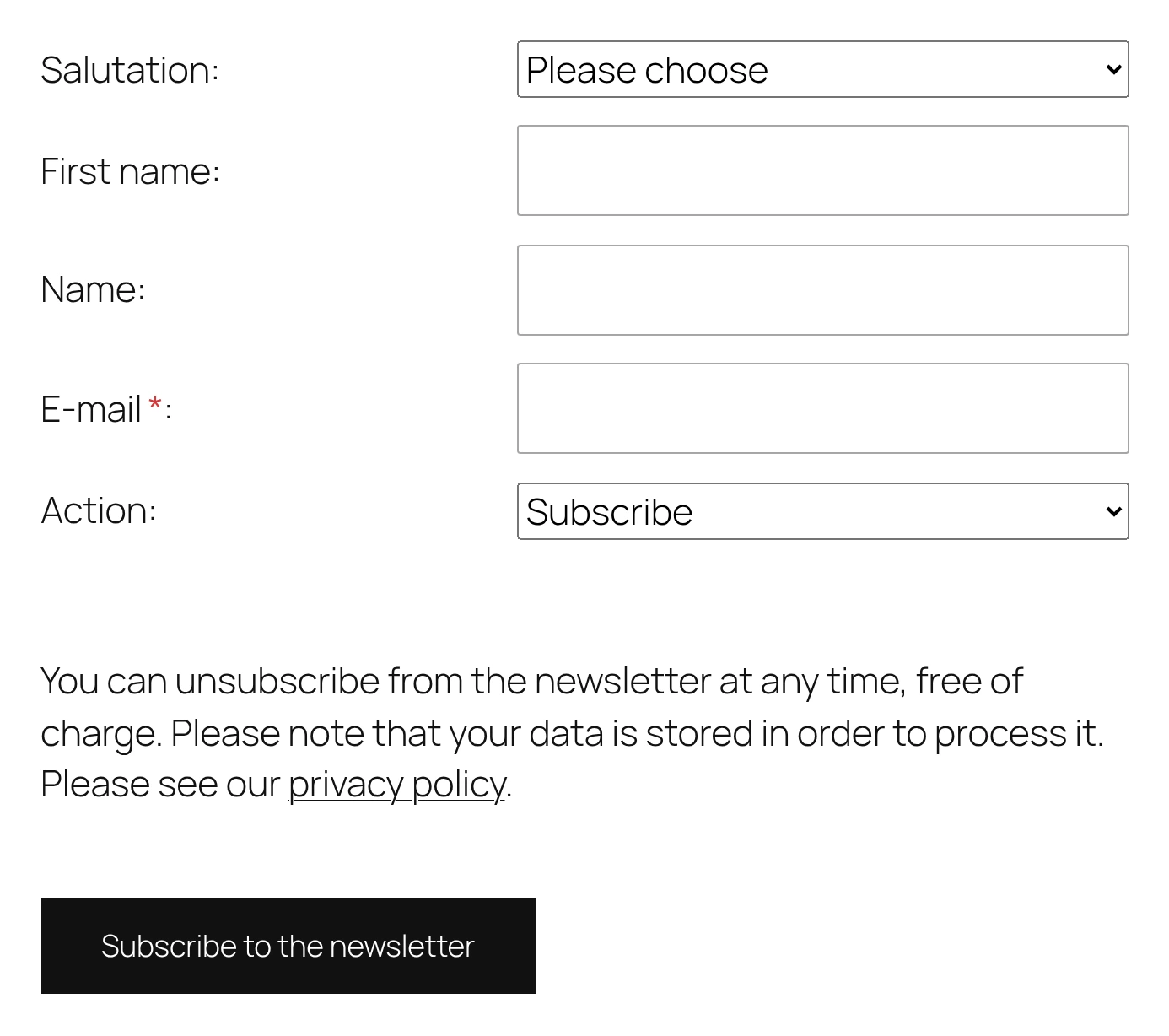
This page always carries the full version with every field that is asked for under Form configuration, and with the Subscribe / Unsubscribe choice.
The shortcode
Write this into a page or a post:
[wpng_form]                     the full version
[wpng_form compact="1"]         the short version
[wpng_form groups="Events"]     into a particular group
[wpng_form compact="1" groups="3,5"]   both
There are exactly two attributes, and neither of them selects fields:
| Attribute | Values |
|---|---|
compact |
1, true, yes, ja or on. Anything else means no |
groups |
Group names or IDs, comma-separated |
Why you cannot choose the fields in the shortcode
What a field is for — asked, required, omitted — is defined in one place: under Form configuration. An attribute per field would have created two places for the same question, and „which one wins?" would come back with every support request.
The shortcode renders the same template as the subscription page. In the feed and in the excerpt it renders nothing — in a feed reader nothing could be submitted anyway.
The short version
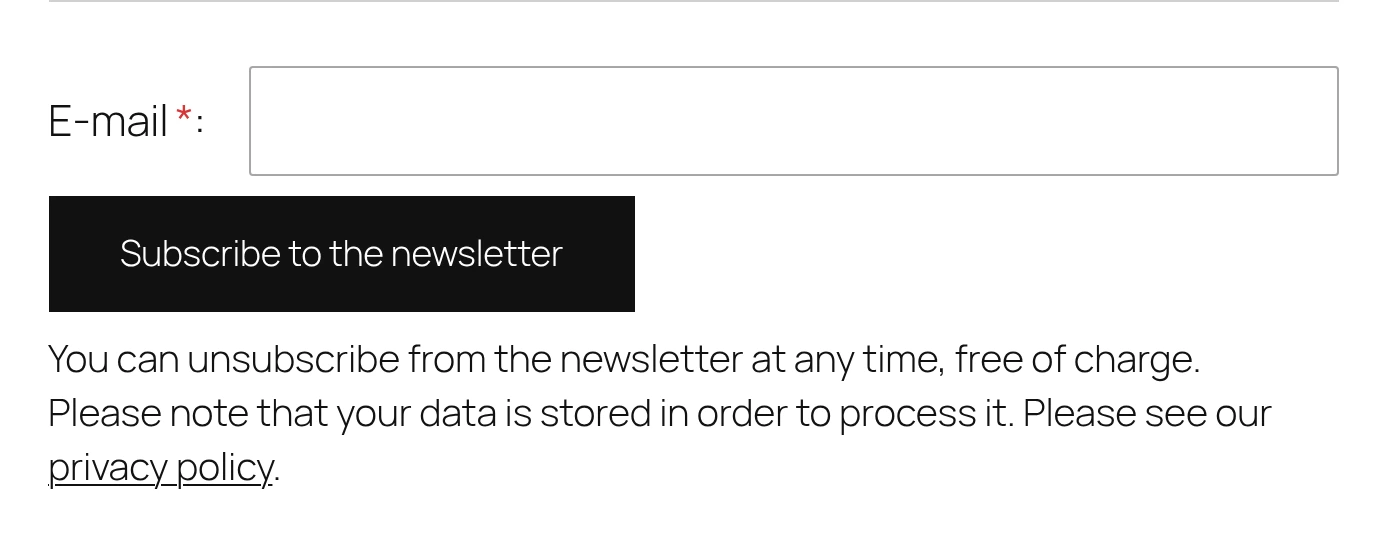
Meant for the space under a blog post: e-mail address and button, nothing more. Seven fields under an article put people off; an address is something someone will still type.
There is exactly one rule: everything optional falls away, everything required stays. There is no second switch for it. If you want the first name in the short form too, set it to Required field under Form configuration.
That is not just convenient, it is the only rule free of contradictions: a second switch could omit a field the settings call required — and then you would get a subscriber without a value you had declared indispensable.
What does not fall away: the notice about data processing. It is mandatory, not decoration, and appears in smaller type under the field in the short version.
Nor does the second address field fall away if you have switched it on — without it the form could not be submitted at all.
The block
In the editor, search the blocks for „Newsletter". The block is called Newsletter form and sits in the Widgets category.
In the editor's sidebar it has a Short form switch and a field for the group, with the existing group names as help text underneath.
Three peculiarities:
The block is rendered server-side. Only a comment is stored in the post; the form comes into being when the page is requested. A form frozen into the post would otherwise show the settings of the day somebody inserted the block — a required field added later would be missing there forever.
Only one per page. The same form twice means the same field names twice, and the message after submitting might appear in the wrong one.
Block and shortcode on one page: the block takes the message, even if the shortcode is above it. Use one or the other.
Automatically under every post
Newsletter → Configuration → Settings → Form configuration → tab Short form
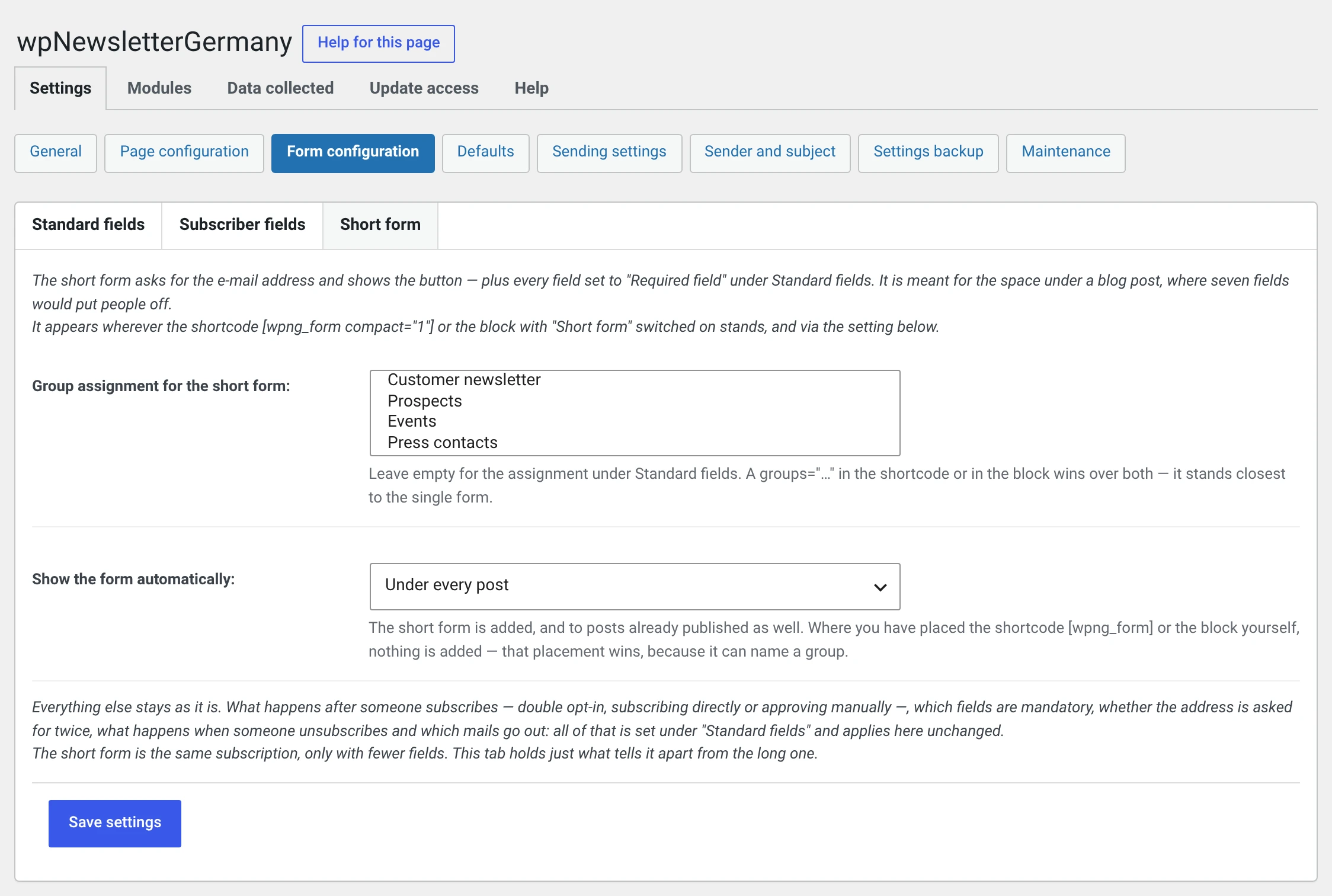
| Value | What happens |
|---|---|
| Not at all | Default. The form only goes where you put it |
| Under every post | Under every post in the single view |
| Under every post and page | Plus the pages |
What is appended is always the short version. If you want the full one under a post, put the shortcode there.
The setting applies retroactively: to the three hundred posts already published just as much as to the next one. That is exactly what it is for — as a manual step per post it would be the shortcode, three hundred times.
Where nothing is appended anyway
| Case | Why |
|---|---|
| In archives, lists, on the home page | Single view only |
| On one of the plugin's own five pages | On the subscription page it is already there, and under „Thank you for subscribing" it would be in the wrong place |
| Where a shortcode or a block is already in the text | You have already decided there — and more precisely, because a group can be given there |
| In a theme's secondary queries, such as „related posts" | Otherwise the form would appear in four places on one page |
Which group the subscription goes to
The three levels are described under
Groups. In short:
groups="…" beats the setting for the short form, and that beats the general
default.
When someone subscribes who is already on the list
Since 2.0.1. What happens depends on the state the address is in:
| The address is … | What happens |
|---|---|
| not on the list | confirmation mail, active straight away or manual approval — whichever you have set |
| active | nothing. No entry, no mail, no duplicate row |
| waiting for confirmation | the confirmation mail goes out again |
| inactive — unsubscribed, blocked, or returned as undeliverable | the confirmation mail goes out, and only the click in it makes the address active again |
Unsubscribed stays unsubscribed until the subscriber clicks
For an inactive address the confirmation mail always goes out — even if you have set "subscribe directly without a confirmation mail".
The reason: the plugin cannot tell why someone is inactive. Unsubscribed, blocked by you, returned as undeliverable — it all looks the same. Someone who unsubscribed must not end up back on the list just because a form was submitted with their address.
The message does not reveal who is on your list. What appears after submitting depends on your setting alone, not on whether the address was known. One remainder is left in the setting subscribe directly without a confirmation mail: an inactive address gets the confirmation mail there and therefore the message about it, everyone else "subscribed successfully". Anyone trying an address learns there that it is unsubscribed or blocked. In the default — confirmation mail for everyone — that difference does not exist.
At most one confirmation mail per hour to the same subscriber. Otherwise someone could use your form to send a stranger any number of mails. This is remembered without the address, using the subscriber number only.
Subscriptions are written to the consent record — subscribing again gets its own line there.
Where it goes after submitting
Back to the same page. Someone subscribing under a post stays with the post they are reading. The success message appears above the form.
That applies to the shortcode and to the block. For the widget the old behaviour remains — a sidebar appears on pages that do not carry the form in their text, and there the subscription page is the right destination.
If you have entered a page of your own under Page configuration as Page after unsubscribing, your setting wins.
If there is an error in the form, nothing is redirected: the page renders again, and the errors appear above the form.
The appearance
The theme styles, the plugin arranges. Typeface, font size, colours and the look of the button come from your theme; the plugin only says what goes where.
The submit button carries the class wp-element-button — the class a block
theme uses to style buttons from its theme.json.
Your newsletter button therefore looks like every other button on your site.
Below 600 pixels of width the label sits above the field.
Your own CSS
The classes are stable:
| Class | |
|---|---|
.wpng_registerForm |
the shell of the form |
.wpng_registerForm_kompakt |
additionally on the short version |
.wpng_unterBeitrag |
the shell of the automatically appended form |
.wpng_botsperre |
the invisible field of the spam protection — do not make it visible |
A template of your own
As with the layouts: put the file under
<your theme>/wpng_views/register/ or
wp-content/uploads/wpng/user_views/register/.
| File | Renders |
|---|---|
index.php |
Subscription page, widget, [wpng_form] without compact |
kompakt.php |
The short version and the automatically appended form |
An existing .phtml still applies
Since 2.0.2 the supplied templates end in .php — only that way can
translate.wordpress.org translate their texts. A template of your own may
carry either ending: at each location the plugin looks for the .php
first and the .phtml after it. So there is nothing to rename.
Two things must remain in a version of your own:
<?php $this->callMods( 'register_form' ); ?>
The form's security check and the spam protection both hang on this. Without the line the form takes nobody on: every sign-up comes back with the notice „The form had expired. Please submit it once more.", and it does so on every attempt. On top of that the honeypot field and the time proof are missing; only the content check and the rate limit remain.
If you want the check somewhere else in the form, write
<?php wpng_nonce_feld(); ?>
<input type="hidden" name="wpng_form_post" value="…" />
The return to the same page and the form's group hang on this.
What every field tells the browser
Since 2.0 every field carries the appropriate attributes so that the browser can autofill and the phone can show the right keyboard:
| Field | Type | Autofill |
|---|---|---|
| Salutation | select | honorific-prefix |
| First name | text | given-name |
| Last name | text | family-name |
| Street | text | street-address |
| Post code | text, numeric keyboard | postal-code |
| City | text | address-level2 |
email |
||
| Repeat e-mail | off |
The repetition deliberately gets no autofill — otherwise the browser fills in exactly what the visitor is supposed to type out, and the check checks nothing.
Required fields carry required; the asterisk next to them is for the eye
only.
The check in the browser does not replace the one on the server. It comes on top: every field is checked again after submitting.
Page caching
The form may sit on busy pages that your host caches. The spam protection's time proof is not in the HTML — it is fetched at runtime, precisely because otherwise the cache would carry the moment the cache was filled.
There is one limit: a day. The form's security check is valid for 24 hours. If the page sat in the cache for longer, the first sign-up comes back with the notice „The form had expired. Please submit it once more." Nothing is stored, but the entries are still in the fields, and submitting a second time goes through.
Do not confuse this with the spam protection's notice
„The form was open for too long" comes from the spam protection and means a visitor who left the form lying open for over an hour. „The form had expired" means the page in the cache. Both call for the same thing: submit once more.