Form configuration
Newsletter → Configuration → Settings → Form configuration
The page has two tabs, three with the Subscriber fields module:
| Tab | |
|---|---|
| Standard fields | Which fields are asked for and what happens after subscribing and unsubscribing |
| Subscriber fields | Custom fields — only with the module |
| Short form | Everything that distinguishes the short version from the long one |
Tab: Standard fields
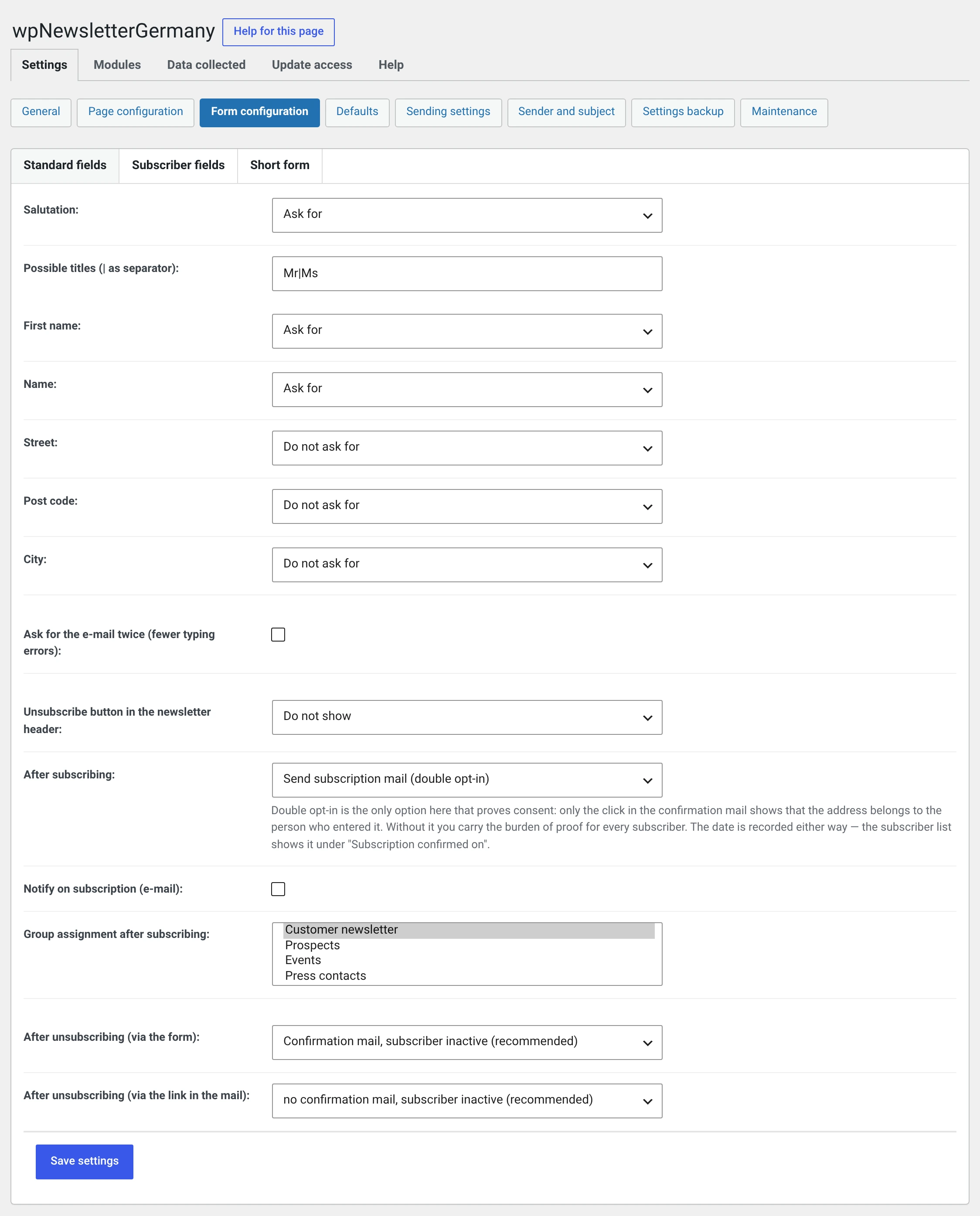
The six fields
Salutation, first name, last name, street, post code and city each have the same three options:
| Ask for | The field appears, nobody has to fill it in |
| Required field | The field appears with an asterisk and must be filled in |
| Do not ask for | The field does not appear |
The e-mail address is always present and always required.
Ask for as little as possible
Every field costs subscriptions. For a newsletter you need the address; you can ask for a first name if you want to use it in the salutation. A newsletter never needs a postal address.
Data protection law comes to the same conclusion: what you do not need for the purpose, you should not collect.
Required fields apply in the short form too
The short form shows the address and everything set to required here. If you really want only one field there, do not make anything but the address required here.
Possible salutations — the choices in the salutation field, separated by
|. Default Mr.|Mrs.. If you want to offer a third option, add it, and if
you want none at all, set the field to Do not ask for. What is entered here
ends up unchanged in the placeholder %abo_title%.
Ask for the e-mail twice — a second field to type into. Catches typos. The browser deliberately does not autofill the second field, otherwise the check would check nothing.
Unsubscribe button in the newsletter header
| Do not show | Default |
| Unsubscribe directly | One click and the recipient is unsubscribed |
| Redirect to the unsubscribe form | One click leads to your form |
The unsubscribe link in the footer of the template is unaffected by this — that one is mandatory and always present.
After subscribing
This is the most important setting on the whole page.
| Choice | What happens | Provable |
|---|---|---|
| Send registration mail (double opt-in) | The subscriber gets a mail with a confirmation link. Only the click makes them active | yes |
| Subscribe directly without confirmation mail | Active immediately | no |
| Subscribe directly and send confirmation mail | Active immediately, but gets a mail | no |
| Activate manually | Waits until you set them to Active in the subscriber list | no |
Only double opt-in proves consent
Only the click in the confirmation mail shows that the address entered belongs to whoever entered it. Without it, anyone can enter anyone else's address.
For e-mail marketing the burden of proof lies with the sender. If you choose one of the other three options, you can no longer prove consent — and you should have some other record in hand.
Since 2.0 this sentence also appears next to the field in the backend. Nothing is forbidden: there are cases where the address is already confirmed by other means.
More under Consent.
Notify on subscription (e-mail) — you get a mail for every subscription. Useful with a handful of subscriptions a month, an imposition with fifty a day. The recipient and subject of that mail are under Sender and subject.
Group assignment after subscribing
Which groups a new subscriber goes into. Multiple selection.
This is the most general of the three levels. A groups="…" in the
shortcode and the assignment for the short form take precedence — see
Groups.
Without an entry, subscriptions land in no group
They are created but never receive a newsletter, and nobody notices. The one exception: if there is exactly one group in the installation, the subscription goes there.
Check the subscriber list under Unassigned.
After unsubscribing — twice
Two fields with the same six options, for two different routes:
- Via the form — somebody enters their address into the unsubscribe form.
- Via the link in an e-mail — somebody clicks the unsubscribe link in the newsletter.
| Choice | Confirmation mail | Afterwards |
|---|---|---|
| Confirmation mail, delete subscriber | yes, with link | deleted |
| Confirmation mail, subscriber inactive | yes, with link | inactive |
| No confirmation mail, delete subscriber | no | deleted immediately |
| No confirmation mail, subscriber inactive | no | inactive immediately |
| Info mail, delete subscriber | yes, without link | deleted immediately |
| Info mail, subscriber inactive | yes, without link | inactive immediately |
The recommendation differs per field — the form writes „(recommended)" in two different places accordingly:
| Field | Default and recommendation | Why |
|---|---|---|
| Via the form | Confirmation mail, subscriber inactive | Anyone can type somebody else's address into the form |
| Via the link in an e-mail | No confirmation mail, subscriber inactive | The link carries an unguessable token. Only whoever received the mail can trigger it — a second mail with a second click would be an obstacle, and obstacles to unsubscribing produce complaints instead of unsubscriptions |
Both apply to new installations. An existing one keeps whatever is set there.
Two things to consider:
Inactive instead of deleting is the recommended route. A deleted subscriber can accidentally reappear with the next import; an inactive entry is the proof that somebody no longer wants to be contacted.
Confirmation mail means: the unsubscription only takes effect when the link in the mail is clicked. That protects against somebody unsubscribing another person's address — for the form, that is the reason for the default.
Tab: Subscriber fields
Only in the Pro and Enterprise editions
Appears only if the Subscriber fields module is running. There you create custom fields — text field, select, checkbox — that appear in the subscription form and are available as placeholders.
Tab: Short form
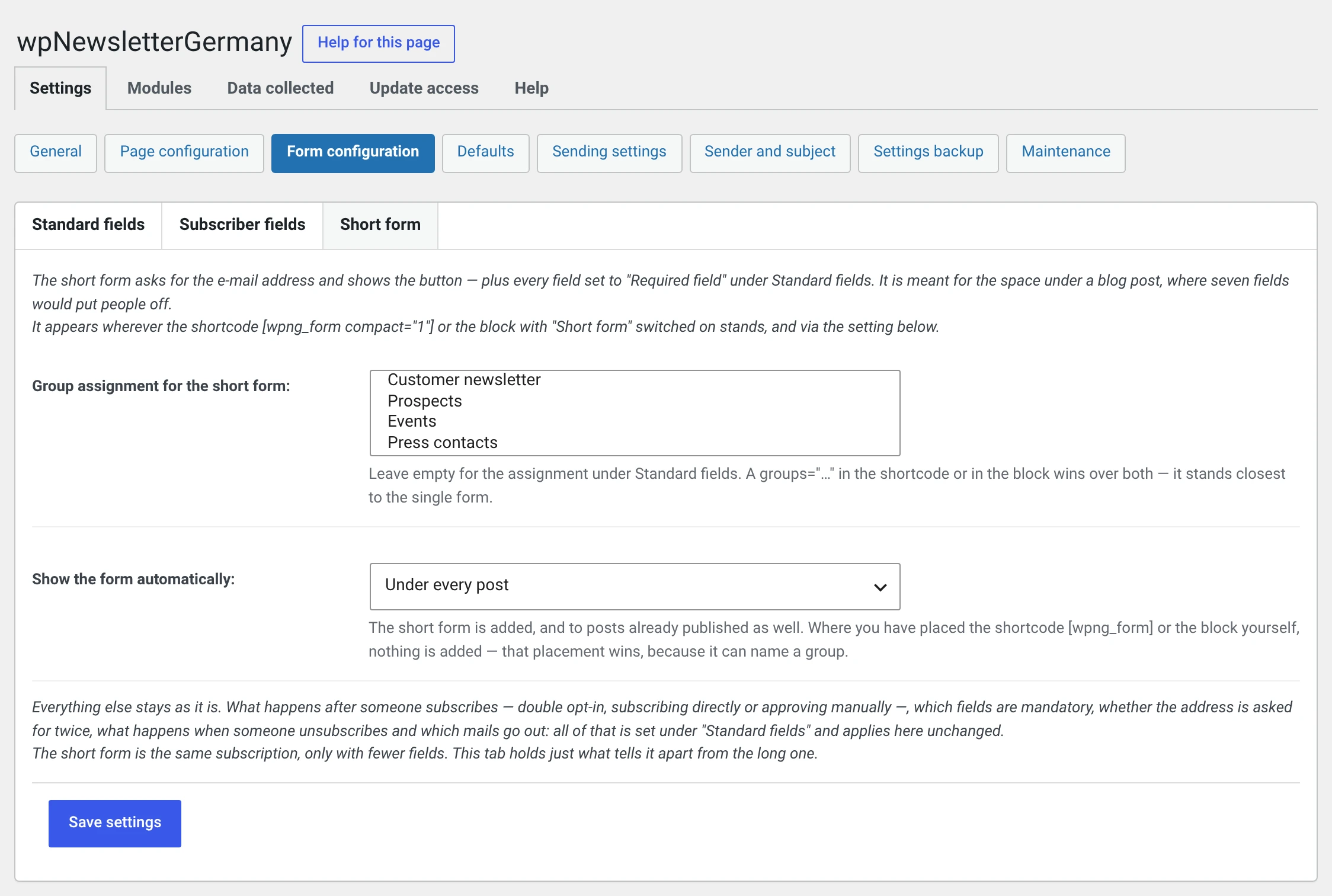
This holds only what distinguishes the short version from the long one. Everything else — required fields, double opt-in, the behaviour when unsubscribing, the mails — applies unchanged: the short form is the same subscription, only with fewer fields.
Group assignment for the short form
If you have a form under every post, you usually want to distinguish the readers who sign up there from those who come through the subscription page.
Leaving it empty means: the assignment under Standard fields applies.
A groups="…" in the shortcode or in the block beats both — it is the closest
to the individual form.
Show the form automatically
| Value | |
|---|---|
| Not at all | Default |
| Under every post | Post type post, in the single view |
| Under every post and page | plus pages |
What is appended is always the short version. The setting applies retroactively, including to posts already published.
Where you have placed the shortcode or the block yourself, nothing is added — that statement wins, because it can name a group.
The details, and where nothing is appended anyway, are under Placing the subscription form.
Set shop customers with the same e-mail to „Inactive"
Appears only if wpShopGermany is running. When somebody unsubscribes from the newsletter, the newsletter checkbox on their customer account in the shop is cleared as well.