Sending settings
Newsletter → Configuration → Settings → Sending settings
This is about how the mails go out. Not about what is in them — that is Sender and subject.
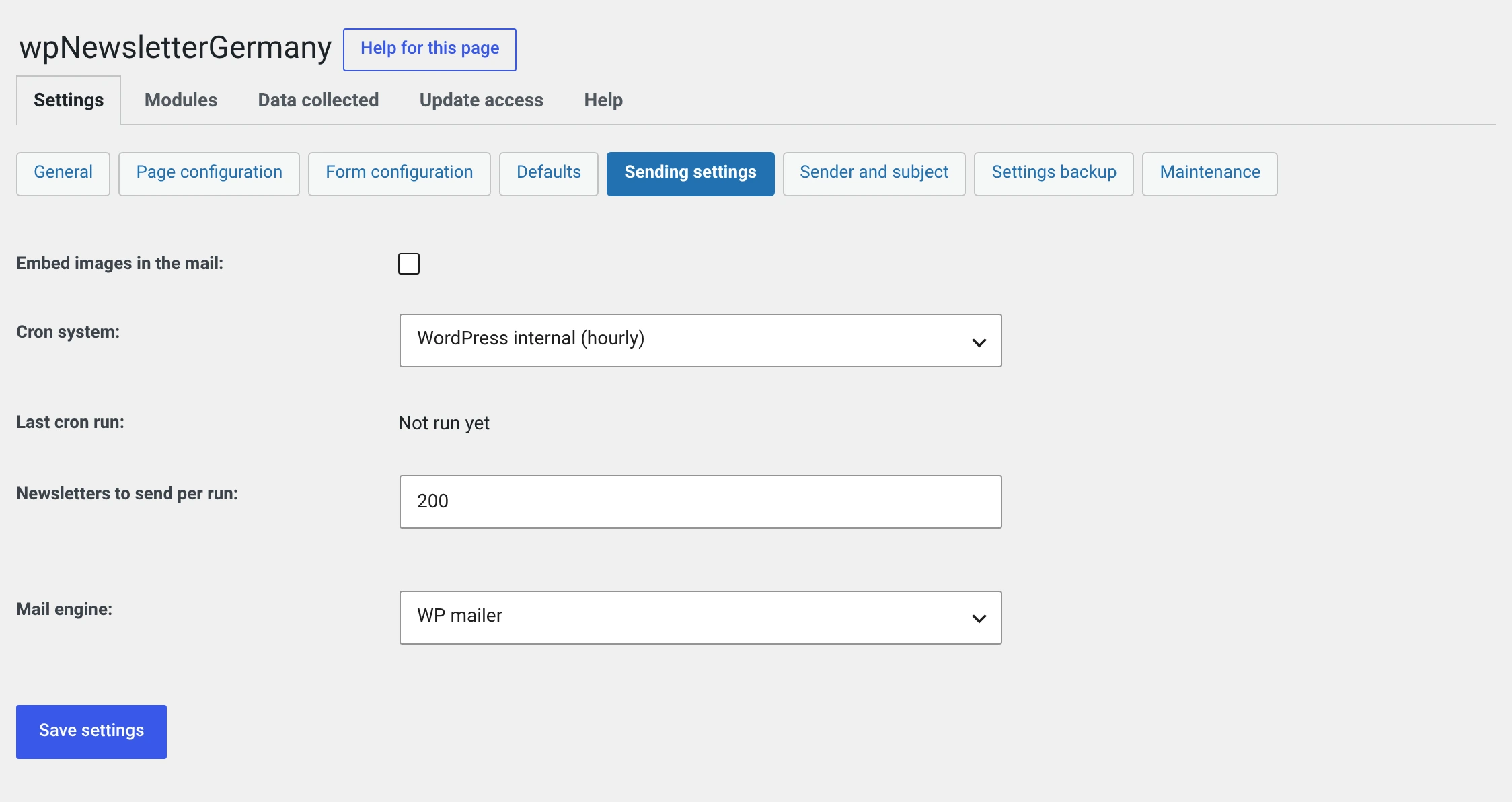
Embed images in mail
Off out of the box. The images are then referenced in the mail, and the mail program loads them from your server.
Switched on, the images travel inside the mail and are visible immediately.
| Off (default) | On | |
|---|---|---|
| Size of the mail | small | larger by the images |
| Visible immediately | no, usually only after „display images" | yes |
| Open tracking | works | stops working |
Embedding and counting opens are mutually exclusive
The tracking pixel of the Statistics is an image that has to be loaded from the server. If it is embedded along with the rest, nobody loads anything any more, and no open is counted.
An image that should stay excluded gets class="noreplace".
Cron system
Sending runs in portions, triggered by a cron.
| Choice | |
|---|---|
| WordPress internal (hourly) | Default. WP-Cron, triggered by page views |
| External | A real cron job on the server calls a file |
With External, sending only happens when someone calls the address below the field — WP-Cron stays quiet so that the same send does not run twice.

The address goes through WordPress and ends in a key. Without it, or with a wrong one, nothing happens. Treat the address like a password: whoever knows it can trigger the due send early, but cannot read or change anything. The key is not included in the file from Settings backup; it can be regenerated under Maintenance.
WP-Cron depends on page views
On a site nobody visits for days, it does not run. The newsletter then sits in the queue — without an error message.
If you send regularly and have few visitors, set up a real cron job. With most hosts you can do that in the customer area as "call URL"; enter the address from the field there. In a crontab it looks like this:
*/5 * * * * wget -q -O /dev/null "https://your-domain.test/wp-admin/admin-post.php?action=wpng_cron&schluessel=…"
Then set the field to External.
Pro and Enterprise additionally show the previous address below it,
cron.php in the plugin folder. It keeps working, so a cron job from before
2.0 does not need to be changed. The free edition does not have it.
Last cron run is information: when the plugin's cron last ran. If the value stays put while a send is waiting, you have found the cause.
Newsletters sent per run
How many mails go out per cron run. Default 200.
With an hourly cron that is up to 4,800 mails a day. If that is not enough, do not simply raise the value: a run the server aborts after 30 seconds stops halfway. A more frequent external cron is better.
If the send gets stuck
Set the value lower, not higher. 50 is a good second attempt, 25 with very tight hosts.
Also ask your host about the permitted number of mails per hour. Many packages have one, and above it mail is rejected, not delayed.
Mail engine
| Choice | |
|---|---|
| WP mailer | Default. The route your website takes for all its mail anyway |
| PHP mailer (optionally SMTP) | The plugin builds the connection itself |
Take the WP mailer if you use an SMTP plugin or if your website's mail works. The newsletter then takes the same route as every other mail.
Take the PHP mailer if you want to use an SMTP account just for the newsletter.
| WP mailer | PHP mailer | |
|---|---|---|
| SMTP plugin applies | yes | no |
| Credentials | in the SMTP plugin | here, password encrypted |
| „HTML and text mail" | both parts | both parts |
| Priority of the newsletter | is not set | is set |
| Embedding images | works | works |
One peculiarity of the WP mailer
An SMTP plugin can override your sender. wp_mail() applies its
filters after reading the sender header. If the mailbox shows a different
sender than you configured, that is the cause.
The third route is gone
Up to 1.1.4 there was MIME mailer (up to PHP 5.6), and that was the
silent default for anyone who had never configured anything. It was
dropped in 2.0: it ended in the same mail() function as the WP mailer,
brought along its own library from 2005 and was the only place where the
plugin assembled a parameter for a system command.
On update it is switched to the WP mailer, and you get a message about it in the backend. The sender stays the same.
SMTP
The following fields appear only with the PHP mailer.
| Field | |
|---|---|
| Use SMTP server | Without the checkbox the PHP mailer sends over the server's mail() |
| SMTP host | The server, e.g. mail.your-host.test. A different port is appended with a colon: mail.your-host.test:587 |
| SMTP auth | Log in with user name and password. Almost always necessary |
| SMTP username | |
| SMTP password |
The password field stays empty
If a password is stored, the form says so — the field itself stays empty. Only enter something if you want to change the password. There is a button next to it for removing it.
Up to 1.1.4 the password sat in clear text in the source of this page — visible to anyone who saved it or looked over your shoulder. Since 2.0 it lies encrypted in the database and appears in no field.
Use port 587, not 465
There is no field for the encryption type. The plugin leaves it to PHPMailer, which negotiates it over STARTTLS — that is the route of port 587 (and of 25, which many hosts block).
Port 465 speaks encrypted from the first second and therefore requires an explicit setting that does not exist here. An account offering only 465 cannot be reached with the PHP mailer. In that case use the WP mailer with an SMTP plugin — there the encryption type is configurable.