Subscribers
Newsletter → Subscribers
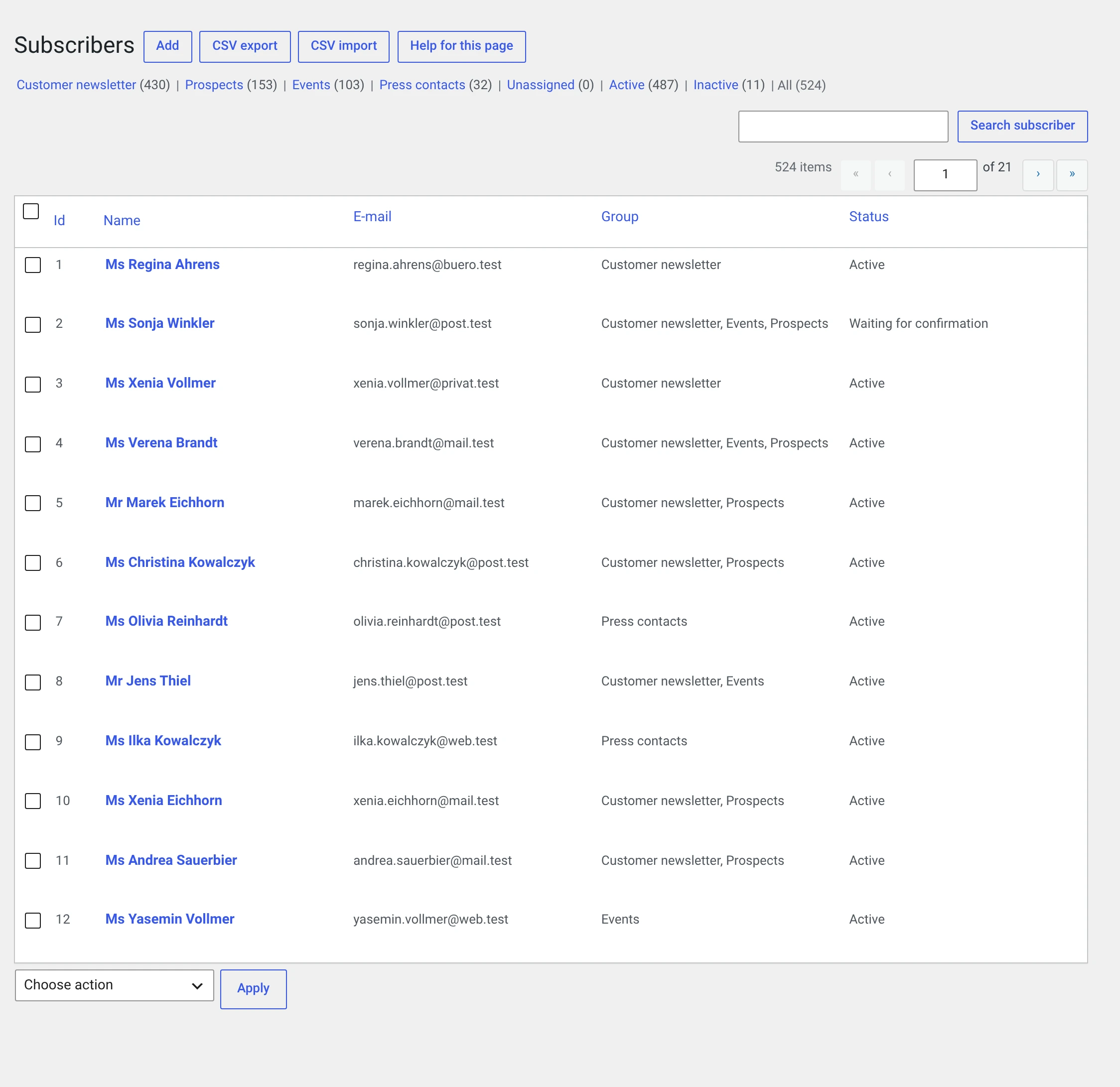
The list shows every address in the installation. How many per page is set under General.
The three states
| Status | Meaning | Receives newsletters |
|---|---|---|
| Active | Has subscribed and confirmed | yes |
| Waiting for confirmation | Has submitted the form but not yet clicked the link in the mail | no |
| Inactive | Unsubscribed, deactivated by hand, or shut down because of undeliverability | no |
When a newsletter is scheduled, only the active ones count. That is the most common reason for „my group has 500 people but only 340 mails went out" — check with the filter.
Why unsubscribing does not delete
Out of the box, someone who unsubscribes is set to Inactive, not deleted. That is deliberate: someone who is deleted can accidentally reappear in the list with the next import. An inactive entry is the proof that a person no longer wants to be contacted.
You can change this under Form configuration, under After unsubscribing.
Filtering and searching
Above the list there are four buttons and a search field:
| Unassigned | Subscribers who are in no group. They never receive a newsletter — here they are all together |
| Active · Inactive | by status |
| All | clears the filter |
| Search field | searches in last name, first name and address |
Clicking a group name in the Group column filters on that group.
Check „Unassigned" regularly
A subscriber without a group is almost always an oversight: the Group assignment after subscribing setting was empty, or an import ran without a group. These people signed up and receive nothing.
The way back: select them all, bulk action Add to group.
Bulk actions
Tick the rows, choose an action at the bottom, Apply.
| Action | |
|---|---|
| Delete subscribers | Final, with all dependent data. You are asked first |
| Set status to Inactive | |
| Set status to Waiting for confirmation | |
| Set status to Active | See the warning below |
| Send opt-in mail again | Sends the confirmation mail once more — for everyone who has been waiting for weeks |
| Move to group | Replaces the previous groups |
| Add to group | Adds to the previous groups |
„Set status to Active" is no substitute for consent
The action exists to unlock a subscriber whose confirmation demonstrably exists — because they gave it to you in writing, say, or because you have configured the „Activate manually" route.
It is not there to arm a whole list that is waiting for confirmation in one go. Without a confirmation there is no proof that the address belongs to whoever entered it — and that is exactly what you need if it is ever disputed.
Editing a subscriber
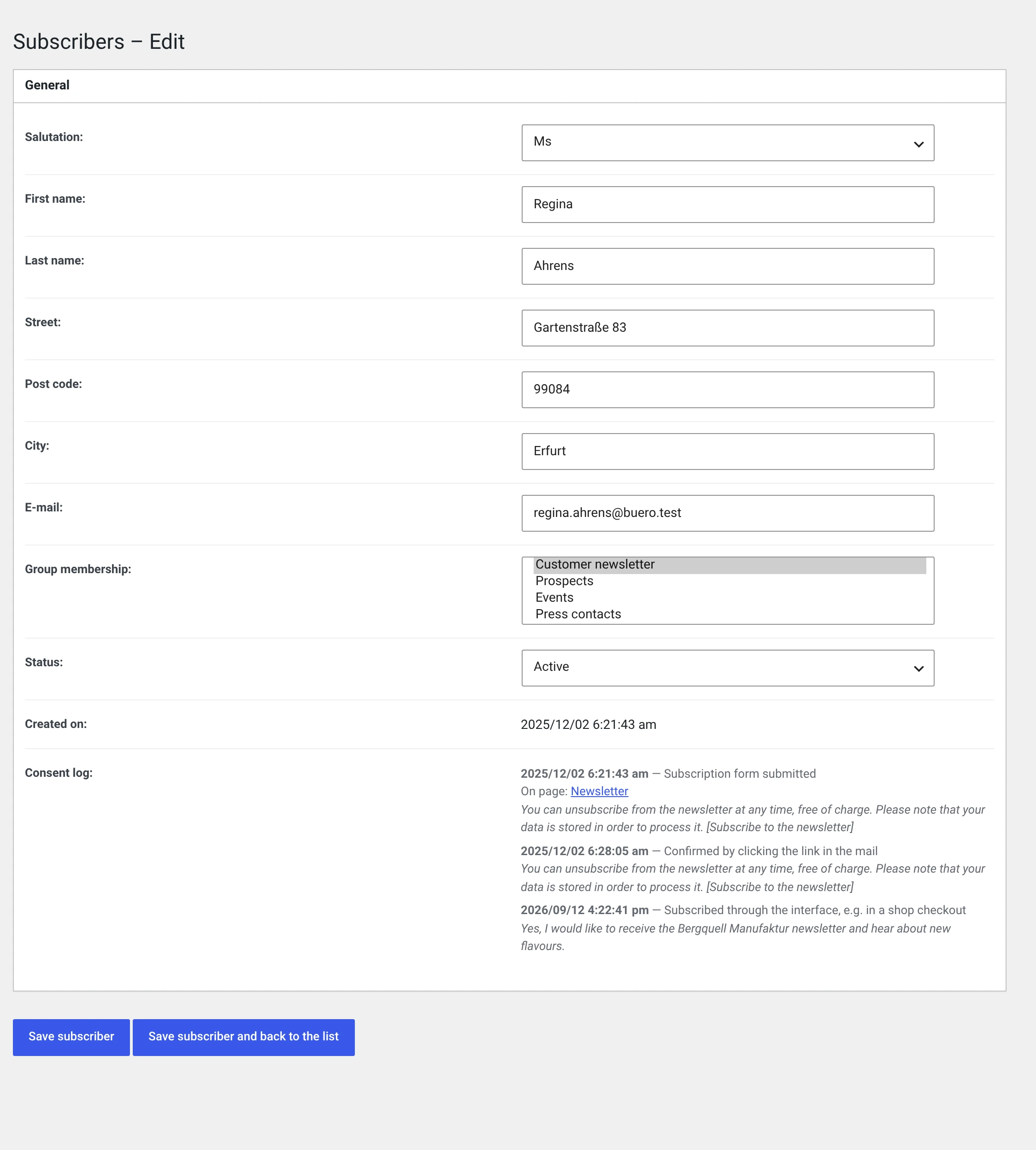
Every field is editable: salutation, first name, last name, street, post code, city, e-mail, groups and status.
Below them are two entries that are not editable:
Created on — when the subscription came in.
The consent record — what the subscriber read when they signed up, and when they confirmed. Two lines: the submission of the form and the click in the confirmation mail, each with a timestamp, with the page the form was on, and with the wording they agreed to.
Why this is not an input field
A proof the operator can edit in the backend is no proof. More under Consent.
For subscribers from before 2.0 there is nothing there. There is no retroactive migration — a wording slipped in afterwards that nobody read would be worse than a gap.
If the Subscriber fields module is running, its fields appear in the form as well. If Bounce processing is running, this subscriber's undeliverable mails are listed there.
Adding by hand
Add above the list. A subscriber created this way receives no confirmation mail and has no consent record.
Someone entered by hand has not consented
The Status field is open to you, but an entry set to Active is not a consent. Only enter addresses for which you have consent by some other route — and record where.
The clean way for a single address: set the status to Waiting for confirmation and send the opt-in mail through the bulk action. A record entry then comes into being just as with any other subscription.
Deleting a subscriber
All of their data goes with them: group assignments, consent record, delivery rows including open timestamps, clicks, subscriber variables and bounce entries. See Uninstalling.
For an erasure requested by a person, it is better to use WordPress's Tools → Erase Personal Data — there the process is documented with a confirmation by the person concerned. See Data protection.
Next
- Groups — the distribution lists
- Placing the subscription form — four ways
- Import and export — CSV