Light and dark
Ahoi shows each page light or dark, depending on the setting of the visitor's device. There is nothing to set up: all palettes have both versions, and all blocks that use palette colors switch along. With wpShopGermany this includes the shop.

The toggle in the header
On the right of the header there is a button with a moon or a sun. With it, visitors choose light or dark themselves, regardless of their device.
- Only the visitor's browser remembers the choice. Ahoi sets no cookie and stores nothing on the server (Privacy).
- If visitors choose the same as their device is set to, the browser forgets the choice. From then on the page follows the device again.
- Screen readers announce the button as "Dark mode", pressed or not pressed. It can be used with the keyboard.
- Without JavaScript the button is hidden; the page then follows the device.
- Older browsers that do not know color values for light and dark show the page light and do not show the button.
Removing or adding the toggle
The toggle is an ordinary button in the header.
- Remove: Open Appearance → Editor → Patterns, choose Header under the template parts and open the header "Header". Click the toggle and delete it. Save. The page then always follows the device.
- Add again: Insert the Color scheme toggle pattern (category "Headers") where you want it in the header.
The checkout has a header of its own with its own toggle (Checkout).
In the Site Editor
The Site Editor also shows the preview the way your device is set. Under Styles, the button with the moon icon ("Dark preview") next to Style Book switches the preview (Colors and fonts).
Your own colors on blocks
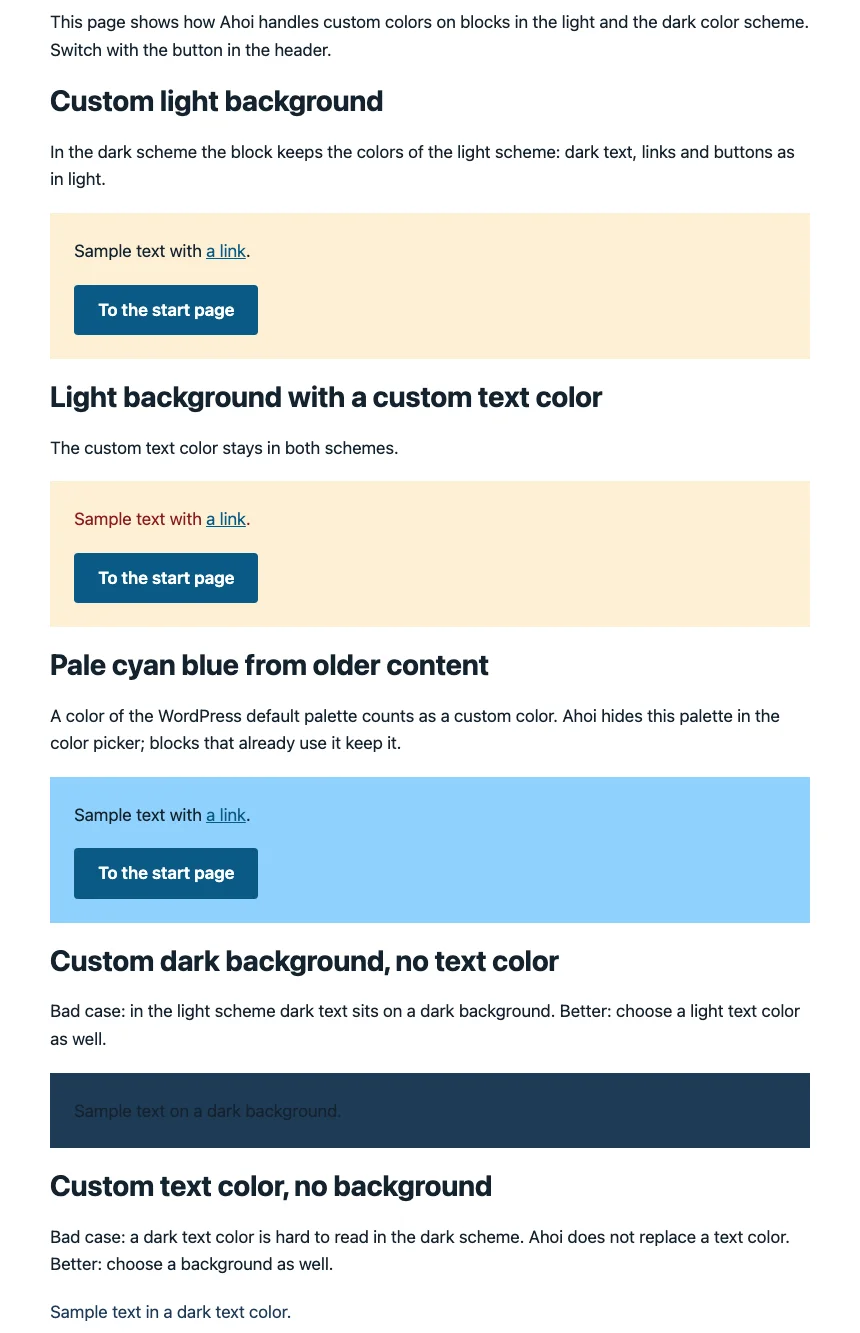
Colors from the Ahoi palette switch between light and dark by themselves. If you choose a color of your own for a block's Text or Background under Color, it stays the same in both modes. This means:
| Chosen on the block | What happens | Advice |
|---|---|---|
| your own light background | In dark mode, the block keeps the colors of light mode: dark text, links and buttons as in light mode. Your own text color stays. | – |
| your own dark background, no text color | In dark mode the text is light. In light mode, dark text sits on a dark background. | choose a light text color as well |
| your own text color, no background | The color stays in both modes; in dark mode a dark text color is hard to read. Ahoi does not replace text colors. | choose a background along with your own text color |
"Your own color" means a color you picked yourself or a color of the WordPress default palette, such as "Pale cyan blue" from older content. Ahoi hides this default palette in the color picker, but blocks that already use it keep it.
With a gradient or a semi-transparent background, Ahoi changes nothing, because it is not clear whether it looks light or dark. Check such blocks in both modes.
Links and buttons, too, take their colors from the palette and do not adapt them to a background of your own. Depending on the palette and the background, a link may then not stand out enough, for example on "Pale cyan blue" in several palettes. So check links and buttons on your own backgrounds with a contrast checker (Checking the contrast).
The editor does not show this behavior, only the site does. So check blocks with your own colors on the front end with the toggle in the header.
How Ahoi handles changed palette colors is described under Your own colors.

Images
An image stays the same in both modes. A logo with dark lettering on a transparent background is hard to see in dark mode. There are two ways around this:
- One logo for both modes: one that works on light and dark backgrounds, or one with a background of its own.
- Two versions: a light and a dark one, with the block styles Light mode only and Dark mode only. On the site, one of them appears, following the choice in the toggle, otherwise the setting of the device. In the editor both are visible.
To set up two versions of the logo:
- In the Header template part, select the Site Logo block and choose Light mode only under Styles on the right.
- Next to it, add an Image block with the dark version and choose Dark mode only there.
- Give the image the same alternative text as the logo, for example the name of the site, and link it to the home page, as the Site Logo does.
- Save.
The same works with two Image blocks anywhere on a page.