Header and footer
Header and footer are template parts. You edit them under Appearance → Editor → Patterns, in the template parts section. What you save there applies to every page that uses the template part.
Header
The header shows the site title on the left and, on the right, the main menu, a magnifying glass for search and the light/dark toggle. Clicking the magnifying glass opens the search field. With wpShopGermany, "Account" and the basket are added (With wpShopGermany).

On phones
On narrow screens the header stays one line: the title on the left, and on the right the menu button, the basket (with wpShopGermany), the magnifying glass and the toggle. If the title is too long, Ahoi shortens it with "…".

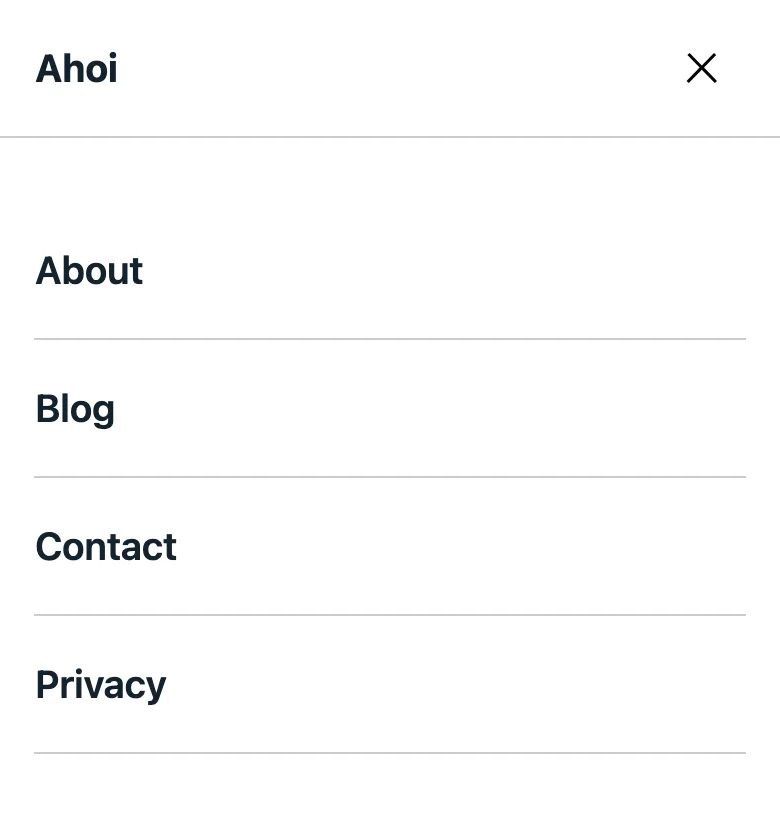
The menu button opens the menu across the whole screen. With wpShopGermany, "Account" and the basket are listed below it. This menu is a template part of its own, Navigation overlay.
Centered header
Ahoi has a second header: Header, centered, with the title in the middle and menu, search and toggle below. To use it:
- Open the Header template part.
- Select its content and delete it.
- Insert the Header, centered pattern with the block inserter (tab Patterns, category "Headers").
- Save.

Keeping the header at the top while scrolling
Select the outer "Group" block in the header. In the sidebar, the Position setting is hidden at first: show it with the ⋮ menu of the Position section and choose Sticky. The header then stays at the top edge while scrolling. Jumps within the page, for example via "Skip to content" or a link to a heading, end just below the header, so the target stays visible.

Menu
The menu in the header is a Navigation block; screen readers announce it as "Main". You edit its items under Appearance → Editor → Navigation or right in the header: click the Navigation block and add, move or delete items. As long as there is no menu, WordPress shows all pages of the site there; how to change that is described under Installation.

Long menus
From 600 px width, Ahoi keeps the header menu on one line. Items that no longer fit are listed at the end of the menu under More, in the same order; submenus appear there as an indented list. There is nothing to set up. If not even one item fits next to "More", the header gets two lines: the menu then has a line of its own, again with "More". On phones the menu button stays.

"More" opens with a click or the Enter key. Escape or a click elsewhere closes it; with Escape the focus returns to "More".
If you want the whole menu behind the menu button at every width, as on phones:
- In the Header template part, click the Navigation block.
- On the right under Settings (gear icon), in the Overlay panel, choose Always for Overlay Visibility. The default is Mobile.
- Save.
The header then shows the menu button at every width. It opens the same full-screen menu as on phones; "More" is no longer used.
Footer
The footer is a dark band with a line in the accent color. It contains:
- the site title and tagline (from Settings → General),
- with wpShopGermany, a line with the address and email address from the shop data,
- social icons for Instagram, YouTube and Mastodon, as soon as you give them an address,
- columns with links,
- at the bottom a bar with © and the site title and the credit for the theme.

Address and social icons
Address: With wpShopGermany, the footer takes the address and email from wpShopGermany → Konfiguration → Shopinfo (shop information). If the name of the shop differs from the site title, it comes first. When you change the shop information, the footer shows it at once, as long as you have not saved the footer in the Site Editor. Without these details the line is left out. Without wpShopGermany, add your address as a paragraph in the Footer template part yourself.
Social icons: In the Site Editor, the footer shows the icons for Instagram, YouTube and Mastodon, asking for an address. Click each icon and enter the address of your profile. Ahoi does not show visitors an icon without an address. Delete icons you do not need, add more with the plus in the block.
The columns
Without wpShopGermany the footer shows three columns:
| Column | Content |
|---|---|
| Discover | the main menu |
| Blog | "Latest posts" (the posts page or the home page) and "RSS feed" |
| Legal | "Privacy", the privacy policy page from Settings → Privacy |
With wpShopGermany, it shows the pages from the shop settings instead, see With wpShopGermany.
Ahoi leaves out a column for which there is no page. As long as you have not saved the footer yourself, Ahoi puts the links together anew on every page view.
After saving, the links stay as they are
As soon as you save the footer in the Site Editor, the links are stored in the database. If you later change the privacy policy page, for example, update the link in the footer by hand. Without wpShopGermany, add a legal notice (imprint) to the "Legal" column yourself if your site needs one.
Credit for the theme
The bottom bar shows "Theme Ahoi by maennchen1.de" with a link to maennchen1.de that opens in a new tab; screen readers announce this. You may remove it:
- Remove: In the Footer template part, click the line and delete it. Save.
- Add again: Insert the Footer credit pattern (category "Footers").
The footer of the checkout has no credit.