Setting up the home page
Ahoi has no separate template for the home page. The home page is an ordinary page with the "Home page" pattern, set as the home page under Settings → Reading. That way it stays a page like any other, and you edit it in the block editor. Ahoi creates it with one click; you can also create it yourself.
Home page with one click
As long as no page is set as the home page, WordPress shows the notice Set up your start page on the dashboard and under Appearance → Themes.

- Click Create start page. Ahoi creates the page "Home" as a draft, with the "Home page" pattern and the Page without title template, and opens it in the editor. With wpShopGermany, Ahoi uses the "Shop start page" pattern.
- Replace the sample texts, swap the image and give the buttons a target (Replacing the placeholders).
- Click Publish. The page then becomes the home page. If there are already posts of your own, the blog gets a page of its own: an existing page "Blog" or a new one.
Until you publish, the button in the notice is called Edit start page. Do not show again hides the notice; Ahoi then creates nothing.
With wpShopGermany and product categories, Ahoi also creates a main menu if there is none yet: an item Shop with the categories (at most twelve), and after publishing Blog as well. Add further pages under Appearance → Editor → Navigation. Without wpShopGermany, Ahoi creates no menu (First the menu).
Creating the page yourself
- Open Pages → Add Page.
-
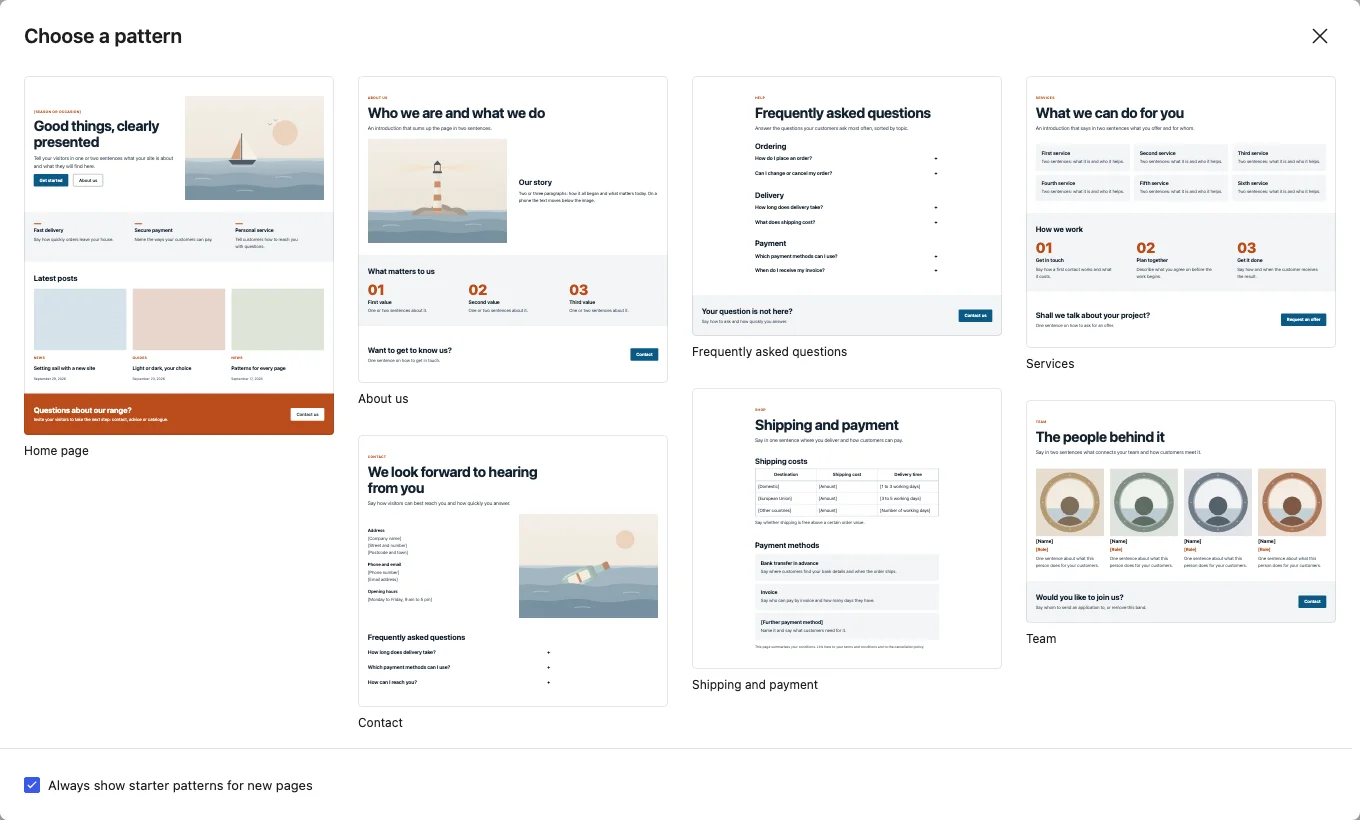
For a new, empty page WordPress offers patterns. Choose Home page. If the choice does not appear, insert the pattern with the block inserter (tab Patterns, category "Featured").
-
Enter a title, such as "Home". It does not appear on the page, only in the list of pages and in the browser tab.
-
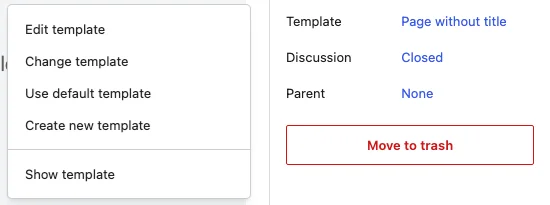
In the sidebar, on the Page tab, click the Template field, choose Change template and click Page without title in the dialog. The pattern brings its own main heading; with the "Pages" template the title would appear a second time above it.
-
Click Publish.
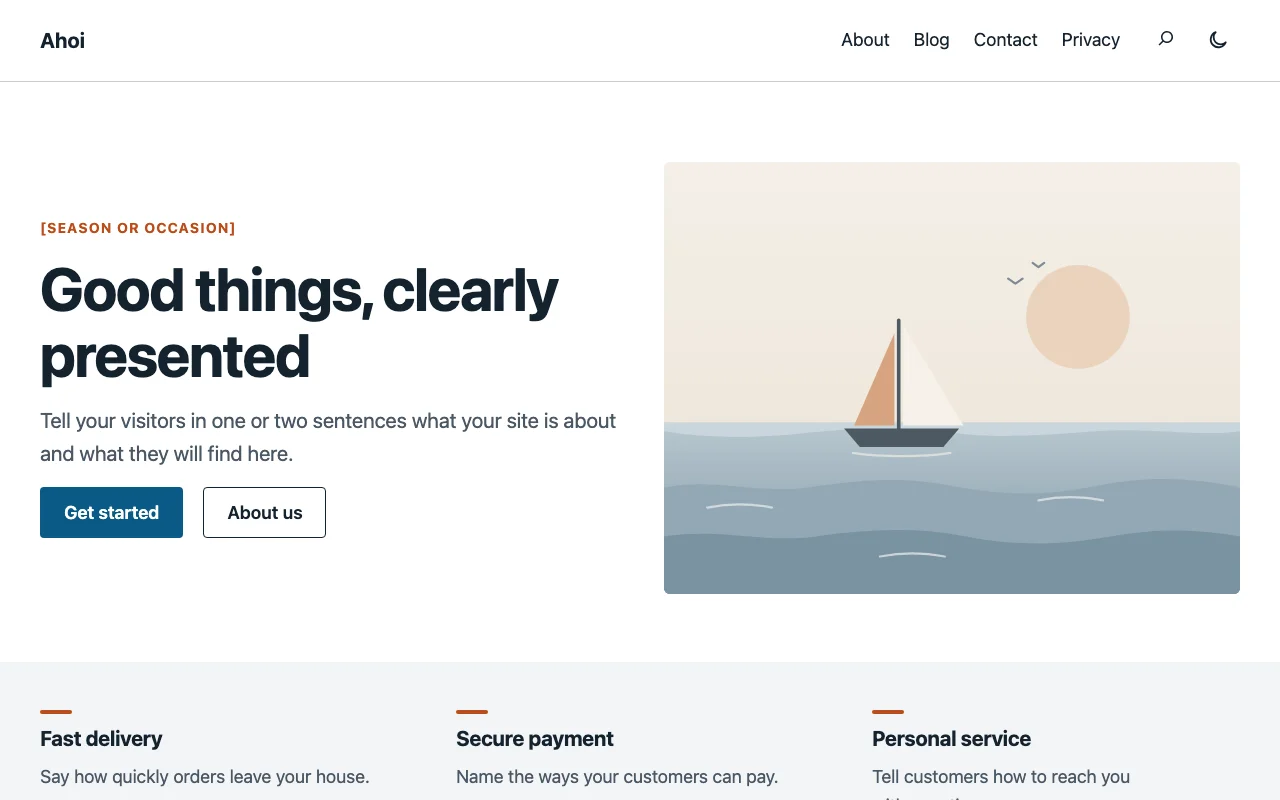
The "Home page" pattern consists of:
- a hero with a small eyebrow line, a large heading, a short text, two buttons and an image,
- three short promises on a tinted background,
- the three latest posts as cards,
- a band in the accent color with a call to action.
Replacing the placeholders
- Texts in square brackets such as "[Season or occasion]" are placeholders. Replace or delete them.
- Image: The hero shows a drawing that comes with Ahoi, a sailing boat. Select the image, click Replace in the toolbar and choose your image. The drawing is part of the theme; after switching to another theme it is missing from the page.
- Buttons: The buttons in the pattern have no target yet. Select each button and set a link in the toolbar. A button without a link is not a link for visitors and cannot be reached with the keyboard.
Making it the home page
Only needed if you created the page yourself.
- Open Settings → Reading.
- Under Your homepage displays, choose A static page.
- For Homepage, choose the new page.
- For Posts page, choose an empty page such as "Blog" if your posts should have a page of their own.
- Click Save Changes.
More pages from patterns
The same window offers more patterns for whole pages: About us, Contact, Frequently asked questions, Shipping and payment, Services and Team, and with wpShopGermany also Shop start page, Promotion and Shop categories. They are set up the same way: choose the pattern, the Page without title template, replace the placeholders. What each one contains is listed under Patterns and block styles.